




How To Use Chevrolet MyLink Navigation System?
Chevrolet’s MyLink is a smart infotainment system that integrates all of the controls, from the radio to navigation to the entertainment system, all while keeping your compatible mobile device within reach as you drive. It’s built into your car’s touchscreen and is accessible by pressing the Navigation icon or Destination button. Here, we are going to highlight some of the key features of the MyLink Navigation System and then show you how to use it. View our inventory of New Chevrolets, or If you have any questions, give us a call at 931-548-1370 today!
Chevrolet MyLink Smartphone Integration
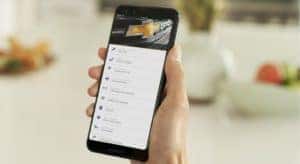 MyLink allows smartphone integration so you can have access to your Chevy MyLink apps or other apps that you use daily. The system is compatible with Android Auto and Apple CarPlay and allows you to access your favorite features or apps from the touchscreen interface. You can also check out new features at Chevy MyLink App Store while listening to your top songs or podcasts. Pair your smartphone to the system and do the following:
- Make and receive calls.
- Use Siri or Google Assistant to search.
- Sync all your contacts.
- Listen to texts and reply verbally.
- Stream music from your smartphone.
- View full map displays.
- Access several customization options.
Chevrolet MyLink Entertainment and Convenience Features
Don’t have a smartphone or mobile device? You can still conveniently use MyLink apps to quickly access all the available entertainment and convenience features that with the Chevy Infotainment 3 system. You and the kids can stay entertained listening to the radio while using the navigation system to navigate those long trips. MyLink offers the following:
Turn-by-turn navigation: Higher trim levels let you use voice commands to tell the system where you’re going. You can download directions to your destination. A voice will call out at every turn so that you can keep your eyes fixed on the road and never lose concentration. Destinations are readily accessible on the touchscreen once you start your car.
4G LTE Wi-Fi connection: Stay connected with your daily life using advanced Wi-Fi connectivity that lets you seek and select available hotspots.
SiriusXM Travel Link/NAV Traffic: Traffic updates, real weather, pump prices, sports scores, and schedules, movie listings, and more — SiriusXM Travel/Nav Traffic helps you stay in the know when on the go.
Pandora audio streaming: Create personalized radio stations that only play the songs you like and stream music for hours with no ads or interruption.
Stitcher podcast streaming: Discover, listen, and download exclusive podcasts on the go. Over 100,000 podcasts and radio shows are available for your entertainment.
Chevrolet MyLink Teen Driver Technology
As an anxious parent with a new teen driver, you can encourage safe driving with the advanced Teen Driver Technology that’s accessible via Chevy MyLink. It comes with pre-set controls and timely reminders. Teen drivers and their parents can expect:
- In-vehicle report cards for parents to review.
- Music volume limits.
- Visual and audible warnings when the driver exceeds a pre-set speed limit.
- Muted radio when front passengers aren’t buckled.
Is Mylink Available in All Chevrolet Vehicles?
Yes, the entire lineup of Chevrolet vehicles has the MyLink system, including Chevy’s electric vehicle, Bolt. Its touchscreen interface varies in size. Sedans, hatchbacks, and SUVs come with a 7-inch or 8-inch touchscreen depending on the model and can include navigation depending on the trim. The same goes for the Chevy truck lineup of Silverado and Colorado trims, which are equipped with the 7- or 8-inch touchscreen interface. The only difference is that not every ride has all the features. Trim levels come with the standard Chevrolet Infotainment 3 System. The system is on par with many other apps and navigation devices on the market but has the added benefit of being built into your Chevy’s dashboard.
Can I Control My Smartphone Through the System?
Yes, you can project your device to your car’s screen as pictures or videos via USB cable, Apple CarPlay, or Android Auto. If you’d like to use the car’s system to make calls or send text messages while on the road, connect your phone to the car. A lot of the convenience apps that you normally use on your mobile, such as Google Maps, Podcasts, and TuneIn, are also accessible from a central place. You can control them through your car’s touchscreen interface, reducing the chance of making traffic errors and violations that typically result in a hefty ticket.
Chevrolet MyLink Interface
The interface is divided into five sections, Navigation, Phone, Media, Text, and Weather, for your convenience. There is another section that is dedicated to service-specific apps like Pandora. Like many drivers, you’re likely to spend time using navigation, media, or streaming apps when driving.
MyLink is designed to pair with most smartphones, allowing you to make calls, text, and listen to radio or podcasts on the go. Once paired, the system will automatically connect to your phone. The voice command allows you to use the navigation system, smartphone, and media playback seamlessly. The system is capable of distinguishing your words and will become more accurate with time.
How to Load a Destination With Chevrolet MyLink
If your vehicle comes with the MyLink Navigation System, simply press the navigation icon on your touchscreen or Dest on the radio’s faceplate and enter your destination. You can also access a saved destination by pressing the Dest icon on the infotainment system. The last destination you entered will appear right on top.
The navigation section provides you with a local area map of the place you’re driving in and helps you create a route to the next destination along with the turns and the direction. There’s the option to search by street address and general points of interest.
Contact Stan McNabb Chevrolet In Columbia, TN
Still, have questions about the Chevy MyLink navigation system or just need clarification? Contact Stan McNabb Chevrolet of Columbia for answers. We can help you update MyLink software and add more cool apps for an enjoyable driving experience. If you’d like to trade in your car for a new or used Chevy, visit us at 101 S. James Campbell Blvd., Columbia, Tennessee.
0 comment(s) so far on How To Use Chevrolet MyLink Navigation System?